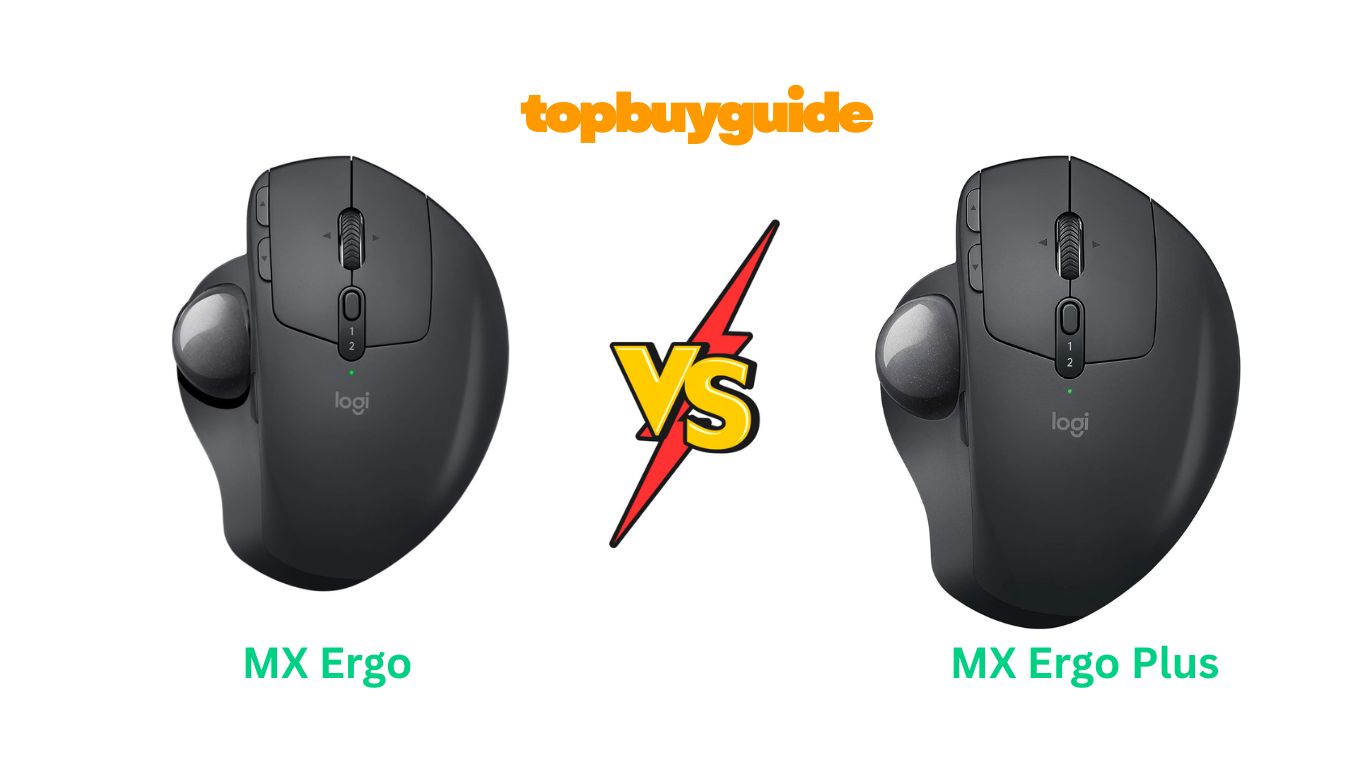
Are you choosing between the Logitech MX Ergo and MX Ergo Plus? Both are top-tier trackball mice for reducing wrist strain. However, the MX Ergo Plus is the clear winner for most people. It includes an extra 10° wedge, providing superior ergonomic customization for maximum comfort. This small addition makes a huge difference. Let’s explore why the MX Ergo Plus is the superior choice for your workspace.
Why Do I Recommend The Logitech MX Ergo Plus?
The Logitech MX Ergo Plus stands out as the better option due to one crucial, added feature: an extra 10° wedge. This component provides a level of ergonomic customization that the standard MX Ergo cannot match. While both mice are excellent for reducing muscle strain, the MX Ergo Plus gives users more flexibility to find their perfect hand position. Here’s why I recommend it:
- Superior Ergonomic Customization: The MX Ergo Plus includes an additional wedge. This allows you to choose a tilt angle of 0°, 20°, or even 30° for your mouse. The standard MX Ergo only offers a 0° or 20° tilt. That extra 10° of tilt on the Plus model can make a significant difference in hand and wrist comfort, especially during long work sessions. This makes it more adaptable to a wider range of user preferences.
- Maximum Comfort Potential: For users with significant wrist pain or those transitioning from a vertical mouse, the 30° angle is a game-changer. It places your hand in a more natural “handshake” position, further reducing muscle strain. In contrast, users of the standard MX Ergo are limited to 20°, which may not be enough for everyone to find their ideal comfort zone.
- Versatile Tilt Options: The wedge provides more than just a 30° option. You can place the mouse on the wedge without engaging the built-in 20° tilt, giving you a 10° angle. This means the MX Ergo Plus offers 0°, 10°, 20°, and 30° tilt options. Meanwhile, the standard MX Ergo is limited to just 0° and 20°.
- Future-Proofing Your Comfort: Your ergonomic needs might change over time. By choosing the MX Ergo Plus, you are investing in a more versatile device. You have the freedom to experiment with different angles to find what works best for you now and in the future. With the standard MX Ergo, your options are permanently limited.
- A Complete Ergonomic Solution: The inclusion of the wedge makes the MX Ergo Plus feel like a complete ergonomic package right out of the box. You don’t need to look for third-party solutions to achieve a higher tilt angle. The standard MX Ergo, while excellent, feels slightly incomplete in comparison for those who need maximum adjustability.
Side By Side Comparison Chart (mx ergo vs mx ergo plus)
| Feature | MX Ergo | MX Ergo Plus |
| Adjustable Hinge | Yes (0° or 20° tilt) | Yes (0° or 20° tilt) |
| Included Wedge | No | Yes (Adds 10° tilt) |
| Maximum Tilt Angle | 20° | 30° |
| Total Tilt Options | 2 (0°, 20°) | 4 (0°, 10°, 20°, 30°) |
| Color | Graphite | Graphite |
| Price | Generally lower | Slightly higher |
What Common Features Can the mx ergo vs mx ergo plus Do?
Despite the key difference in adjustability, the MX Ergo and MX Ergo Plus share a powerful set of core features. These capabilities make them premier choices for anyone seeking an ergonomic alternative to a traditional mouse. Both are designed to boost productivity and provide a seamless workflow.
Ergonomic Design for Comfort
Both mice are engineered to reduce muscular strain by 20% compared to a regular mouse. Their sculpted shape fits the hand naturally, providing support for the palm and thumb. The main method of control is the trackball, operated by the thumb. This design means you move the cursor without moving your arm, minimizing repetitive stress injuries in the wrist and shoulder. This makes either mouse an excellent choice for users who spend long hours at the computer.
Advanced Tracking and Precision Mode
The MX Ergo and MX Ergo Plus feature an advanced optical trackball sensor. A dedicated precision mode button is located right next to the trackball. With a single press, you can instantly switch between normal speed and high-precision tracking. This is incredibly useful for tasks that require fine cursor control, such as photo editing, graphic design, or selecting small cells in a spreadsheet. It gives you the best of both worlds: speed for general navigation and accuracy when you need it most.
Dual Connectivity
Logitech provides flexible connection options for both models. You can connect the mouse to your computer using the included Logitech Unifying USB receiver for a robust 2.4GHz wireless connection. Alternatively, you can pair it directly with your devices via Bluetooth Low Energy technology. This dual connectivity ensures compatibility with a wide range of desktops, laptops, and tablets, whether they have an available USB port or not.
Multi-Computer Workflow with Logitech Flow
A standout feature for both mice is Logitech Flow. This powerful software allows you to control up to two different computers with a single mouse. You can move your cursor seamlessly from one screen to the next, even between Windows and macOS systems. Flow also lets you copy and paste text, images, and files from one computer to another. This revolutionizes workflows for users who operate multiple devices simultaneously.
Long-Lasting Rechargeable Battery
Battery life is a strong suit for both the MX Ergo and MX Ergo Plus. They are equipped with a rechargeable Li-Po battery that can last up to four months on a single full charge, depending on usage. When the battery does run low, a quick one-minute charge can provide enough power for a full day of use. This impressive battery performance ensures that your mouse is always ready when you need it.
Customizable Buttons
Both mice feature several programmable buttons. Using the Logi Options+ software, you can assign custom shortcuts and functions to these buttons. Common uses include assigning copy and paste functions or creating application-specific shortcuts for programs like Photoshop or Microsoft Excel. This customization allows you to tailor the mouse to your specific workflow, making tasks faster and more efficient.
Common Features of mx ergo vs mx ergo plus
| Feature | MX Ergo | MX Ergo Plus |
| Movement Technology | Trackball | Trackball |
| Ergonomic Design | Yes | Yes |
| Precision Mode | Yes | Yes |
| Logitech Flow | Yes | Yes |
| Multi-Device Pairing | Up to 2 devices | Up to 2 devices |
| Connectivity | Bluetooth or Unifying Receiver | Bluetooth or Unifying Receiver |
| Number of Buttons | 8 | 8 |
| Rechargeable Battery | Yes (up to 4 months) | Yes (up to 4 months) |
| Charging Port | Micro-USB | Micro-USB |
| Software Support | Logi Options+ | Logi Options+ |
A Detailed Comparison Of the mx ergo vs mx ergo plus
Ergonomics and Adjustability
The primary selling point of both these mice is ergonomics, and it’s also where they differ most. The Logitech MX Ergo features an adjustable hinge that allows you to set the tilt of the mouse to either 0 degrees (flat) or 20 degrees. This is a significant improvement for wrist comfort over a standard mouse. It helps place your hand in a more neutral position, reducing pronation and muscle strain. For many users, this 20-degree tilt is a welcome relief.
However, the Logitech MX Ergo Plus takes this a step further by including an additional 10-degree wedge in the box. This small piece of plastic is a game-changer. It allows you to achieve a maximum tilt of 30 degrees, bringing your hand even closer to a natural “handshake” posture. You can also use the wedge alone to get a 10-degree tilt. This gives you four distinct tilt options (0°, 10°, 20°, 30°), making the Plus model far more versatile for finding the perfect ergonomic fit.
Design and Build Quality
In terms of physical appearance and build, the two mice are identical. Both the MX Ergo and the MX Ergo Plus feature a premium, sturdy construction with a graphite-colored, soft-touch rubber finish that provides a comfortable and secure grip. They have a satisfying weight that keeps them planted firmly on your desk, which is ideal for a trackball mouse that isn’t meant to be moved.
The trackball itself is smooth and easily removable for cleaning, a necessary maintenance task for any trackball mouse. Both models have the same button layout, including the main left/right clicks, a precision scroll wheel with tilt functionality, forward/back buttons, and the precision mode button next to the trackball. The only physical difference is the extra wedge that comes with the MX Ergo Plus.
Performance and Features
Performance-wise, the MX Ergo and MX Ergo Plus are equals. They use the same high-quality optical sensor for the trackball, delivering smooth and responsive cursor control. The precision mode button on both devices allows for a quick downshift in DPI, enabling pixel-perfect accuracy when needed. This feature is invaluable for detailed work and is executed flawlessly on both models.
Furthermore, both mice are powered by the same Logitech technologies. They support dual connectivity via Bluetooth or the Unifying Receiver and can be paired with up to two devices. The Easy-Switch button makes toggling between computers effortless. Both are also compatible with Logitech Flow for seamless cross-computer control. In every performance metric—from tracking to battery life to software integration—these two mice are on the same level.
Conclusion
After a thorough comparison, the Logitech MX Ergo Plus is the clear recommendation for anyone serious about ergonomics. While the standard MX Ergo is a fantastic mouse, the Plus version’s included 10° wedge provides unmatched adjustability. The ability to choose between 0°, 10°, 20°, and 30° tilt angles ensures you can find the perfect position to minimize wrist strain. This small but critical addition makes the slight price increase well worth the investment for long-term comfort and productivity.
FAQs
- What is the main difference between the MX Ergo and MX Ergo Plus?
The only significant difference is that the MX Ergo Plus comes with an additional 10° wedge, allowing for a steeper tilt angle of up to 30°. The standard MX Ergo’s maximum tilt is 20°. - Can I buy the 10° wedge separately for my standard MX Ergo?
Logitech does not sell the wedge as a separate accessory. If you want the 30° tilt option, you must purchase the MX Ergo Plus model. Some third-party sellers may offer 3D-printed alternatives, but they are not official products. - Is a trackball mouse hard to get used to?
There is a learning curve, but most users adapt within a few days. The main adjustment is learning to use your thumb for cursor movement instead of your arm. Users often report a significant decrease in wrist and shoulder pain once they acclimate. - Can I use the MX Ergo or Ergo Plus for gaming?
These mice are designed for productivity, not gaming. While they can be used for casual games, their polling rate and focus on ergonomics make them less ideal for competitive, fast-paced gaming where high-speed precision is critical. - How do you clean the trackball?
You can easily remove the trackball by pushing it out through the hole on the bottom of the mouse with a pen or finger. Once it’s out, you can wipe the ball and clean the internal sensor and support bearings with a soft, dry cloth. - Do both mice use USB-C for charging?
No, both the MX Ergo and MX Ergo Plus use a micro-USB port for charging. A full charge can last up to four months, and one minute of charging provides a full day of use. - Does the Logitech Flow feature work on both models?
Yes, both the MX Ergo and MX Ergo Plus are fully compatible with Logitech Flow software. This allows you to control two computers and copy-paste files between them seamlessly. - Are these mice suitable for left-handed users?
No, the ergonomic design of both the MX Ergo and MX Ergo Plus is sculpted specifically for right-handed users. Left-handed users would need to look for an ambidextrous or left-handed trackball model.

Alex Turner is a dedicated product researcher and reviewer at TopBuyGuide.com, known for his clear, honest, and data-driven insights. He spends countless hours testing, comparing, and analyzing products to help readers make confident and informed buying decisions.