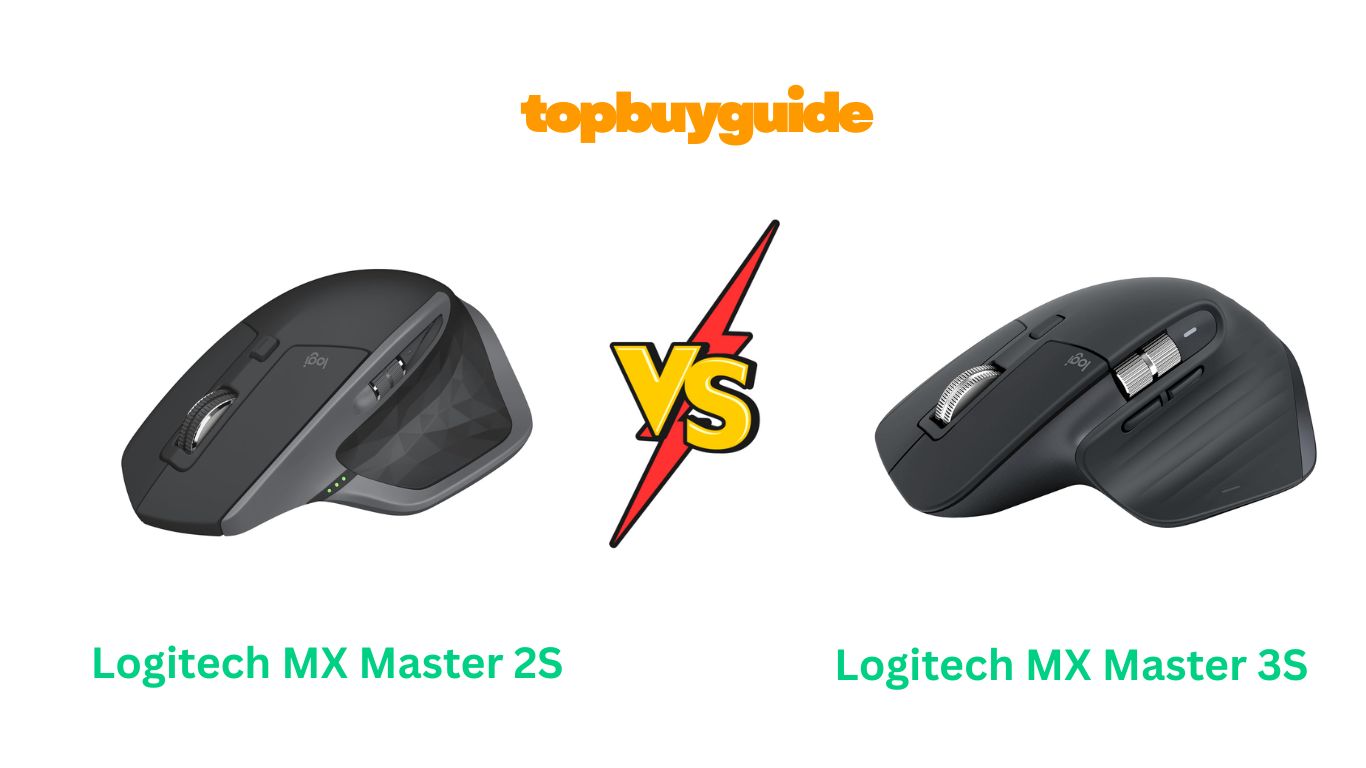
Are you deciding between the Logitech MX Master 2S vs 3? Both are excellent mice, but the MX Master 3 is the clear winner for most users. Its innovative MagSpeed scroll wheel and superior USB-C charging offer significant upgrades. These enhancements make it a worthwhile investment for a smoother, more modern workflow. Let’s dive into why the MX Master 3 takes the lead.
Why Do I Recommend The Logitech MX Master 3?
The Logitech MX Master 3 stands out as the superior choice due to several key upgrades that enhance user experience and productivity. While the MX Master 2S is still a capable mouse, the MX Master 3 introduces refinements that make it the better long-term investment. Here are the reasons I recommend it:
- MagSpeed Electromagnetic Scrolling: The MX Master 3 features a revolutionary MagSpeed scroll wheel. It is nearly silent and incredibly precise. This advanced technology allows you to stop on a single pixel. It is also fast enough to scroll 1,000 lines in a second. In contrast, the MX Master 2S uses a mechanical scroll wheel which is louder and feels less refined.
- Superior Charging with USB-C: The MX Master 3 is equipped with a modern USB-C charging port. This is a significant improvement over the MX Master 2S, which uses an older micro-USB port. USB-C is more convenient, reversible, and has become the standard for most modern devices, meaning you’ll need fewer cables.
- Improved Ergonomic Design: The MX Master 3 has a more refined, hand-sculpted shape. The thumb rest and button placement have been optimized for better comfort during long work sessions. While the MX Master 2S is comfortable, the subtle tweaks in the MX Master 3’s design provide a more natural and supportive grip.
- Redesigned Thumb Buttons: The forward and back thumb buttons on the MX Master 3 are now placed side-by-side, making them more distinct and easier to press without looking. This is a more intuitive layout compared to the stacked, angular buttons on the MX Master 2S, which could sometimes be pressed accidentally.
- Smarter Thumb Wheel: The thumb wheel on the MX Master 3 is larger and made of steel, providing a more premium feel and better control for horizontal scrolling. The MX Master 2S has a smaller, rubber-coated thumb wheel that feels less precise in comparison.
- Enhanced Customization with Logi Options+: The MX Master 3 is fully optimized for the newer Logi Options+ software. This software offers more pre-configured profiles for popular applications and a more streamlined interface for creating custom button assignments. While the 2S is compatible, the MX Master 3 experience feels more integrated.
Side By Side Comparison Chart (MX Master 2S vs 3)
| Feature | MX Master 2S | MX Master 3 |
| Scroll Wheel Technology | Mechanical, speed-adaptive | MagSpeed Electromagnetic |
| Scrolling Noise | Audible click | Nearly silent |
| Charging Port | Micro-USB | USB-C |
| Thumb Buttons | Stacked, angular | Side-by-side, horizontal |
| Thumb Wheel Material | Rubber | Steel |
| Software Support | Logitech Options / Logi Options+ | Logi Options+ (Optimized) |
| Design | Ergonomic, sculpted | Refined ergonomics, improved grip |
| Price | Generally lower | Higher |
What Common Features Can the MX Master 2S vs 3 Do?
Despite their differences, both the MX Master 2S and MX Master 3 share a powerful set of core features. These capabilities make them top choices for productivity and professional use. They are designed to enhance your workflow and provide a seamless experience across multiple devices.
Darkfield High Precision Sensor
Both mice are equipped with Logitech’s Darkfield sensor. This technology allows for remarkable tracking accuracy on virtually any surface. You can use the mouse on your desk, a wooden table, or even glass (with a minimum thickness of 4mm). This feature provides consistent performance. It removes the need for a mouse pad. The sensor on both models offers up to 4,000 DPI, which is more than enough for precise control in productivity tasks and creative applications.
Logitech Flow for Multi-Device Control
A standout feature for both the MX Master 2S and MX Master 3 is Logitech Flow. This software allows you to control up to three different computers with a single mouse. You can move your cursor seamlessly from one screen to another. It even works between Windows and macOS operating systems. Flow also enables you to copy and paste text, images, and files between computers, streamlining your multi-device workflow. This eliminates the need for cloud services or email attachments for simple transfers.
Long Battery Life
Both mice boast excellent battery performance. They are powered by a rechargeable 500 mAh Li-Po battery. On a full charge, both the MX Master 2S and MX Master 3 can last up to 70 days. This longevity depends on your daily usage. This means you can work for weeks without worrying about recharging. This makes them reliable companions for both office and remote work.
Dual Connectivity
Flexibility in connection is a hallmark of the MX Master series. Both the 2S and the 3 offer dual connectivity options. You can connect them to your computer using the included Logitech Unifying USB receiver. This provides a stable 2.4 GHz wireless connection. Alternatively, you can use Bluetooth Low Energy technology to pair them directly with your devices. This dual-option approach ensures compatibility with a wide range of laptops, desktops, and tablets.
Multi-Device Pairing
Both the MX Master 2S and the MX Master 3 can be paired with up to three devices simultaneously. A button on the bottom of each mouse allows you to easily switch between your paired devices. For instance, you can switch from your work laptop to your personal computer and then to your tablet with a simple press of the Easy-Switch button. This feature is incredibly convenient for users who juggle multiple devices throughout their day.
Common Features of MX Master 2S vs 3
| Feature | MX Master 2S | MX Master 3 |
| Sensor Technology | Darkfield High Precision | Darkfield High Precision |
| Max DPI | 4000 DPI | 4000 DPI |
| Logitech Flow | Yes | Yes |
| Battery Life | Up to 70 days | Up to 70 days |
| Battery Type | Rechargeable 500 mAh Li-Po | Rechargeable 500 mAh Li-Po |
| Multi-Device Pairing | Up to 3 devices | Up to 3 devices |
| Connectivity | Bluetooth or Unifying Receiver | Bluetooth or Unifying Receiver |
| Number of Buttons | 7 | 7 |
A Detailed Comparison Of the MX Master 2S vs 3
Scroll Wheel
The biggest difference between the Logitech MX Master 2S and 3 is the scroll wheel. The MX Master 3 introduces the MagSpeed Electromagnetic scroll wheel. It uses magnets to control scrolling, making it nearly silent and extremely precise. It can automatically switch from line-by-line scrolling to a free-spinning mode that can blaze through 1,000 lines in a second. This feels incredibly smooth and modern.
Conversely, the MX Master 2S uses a mechanical speed-adaptive scroll wheel. It also automatically switches between modes, but it is noticeably louder and has a distinct “ratcheting” feel in its precise mode. While effective, it feels like older technology compared to the MagSpeed wheel. The tactile and auditory experience of the MX Master 3’s wheel is a significant upgrade that enhances the overall premium feel of the device.
Ergonomics and Design
Both mice are designed for right-handed users and feature a sculpted shape to support the hand. However, the Logitech MX Master 3 has a more refined and ergonomic design. The height and angle of the mouse have been slightly tweaked for a more natural hand position. The thumb rest is also shaped to provide better support during long hours of use. These changes reduce wrist strain and improve comfort.
The Logitech MX Master 2S is still a very comfortable mouse, but some users may find its shape slightly less accommodating than the 3. The design of the MX Master 3 feels more deliberate and perfected. It’s a subtle but noticeable improvement that makes a difference in day-to-day use, especially for professionals who spend their entire workday with a mouse in hand.
Thumb Buttons and Wheel
Logitech redesigned the thumb-area controls for the MX Master 3. The forward and back buttons are now positioned horizontally, one after the other. This makes them easier to distinguish and press without looking. The MX Master 2S has these buttons stacked diagonally, which can be less intuitive and lead to occasional misclicks.
Additionally, the thumb wheel for horizontal scrolling was upgraded on the MX Master 3. It is larger and made of machined steel, which gives it a more premium, tactile feel. It provides more precise control when scrolling through wide spreadsheets or timelines. The thumb wheel on the MX Master 2S is smaller and coated in rubber. It is functional, but it lacks the satisfying feedback and premium quality of its successor.
Charging Port
The charging port is another practical and significant upgrade on the Logitech MX Master 3. It features a modern USB-C port, which is now the standard for most new electronics. This means you can charge your mouse with the same cable you use for your laptop, tablet, or phone. The port is also reversible, making it easy to plug in without fumbling.
The Logitech MX Master 2S, on the other hand, uses an older micro-USB port. As devices have moved away from this standard, it means you’ll likely need to keep a separate, outdated cable just for your mouse. While it doesn’t affect performance, the convenience of USB-C on the MX Master 3 is a quality-of-life improvement that aligns it with current technology standards.
Conclusion
After a detailed comparison, the Logitech MX Master 3 is the clear winner and the mouse I strongly recommend. The upgrade to the silent, precise MagSpeed scroll wheel is a game-changer for productivity. The switch to a modern USB-C charging port adds immense convenience. Furthermore, the refined ergonomics and improved thumb button layout make it more comfortable for all-day use. While the MX Master 2S is still a solid mouse, the MX Master 3 is a worthy successor that justifies its price with meaningful improvements.
FAQs
- Is the MX Master 3 worth the upgrade from the 2S?
Yes, for most users. The MagSpeed scroll wheel, USB-C charging, and improved ergonomics on the MX Master 3 provide a significantly better user experience. If you are a heavy user, these upgrades make a noticeable difference in daily productivity and comfort. - Can I use the MX Master 3 for gaming?
While you can use it for casual gaming, the MX Master 3 is primarily designed for productivity. It has a lower polling rate than dedicated gaming mice. For competitive gaming, you would be better off with a mouse designed specifically for that purpose. - Do both mice work with macOS and Windows?
Yes, both the MX Master 2S and MX Master 3 are fully compatible with both macOS and Windows. The Logitech Flow feature also allows you to work seamlessly between computers running different operating systems. - What is the difference between the MX Master 3 and the MX Master 3S?
The MX Master 3S is a newer version of the MX Master 3. Its main upgrades are silent clicks, which are 90% quieter than the MX Master 3, and an 8,000 DPI sensor for even more precise tracking. - Does the Logitech Unifying Receiver come with both mice?
Typically, yes. Both the MX Master 2S and MX Master 3 are sold with a Logitech Unifying Receiver included in the box. This allows for a stable wireless connection if you prefer not to use Bluetooth. - How do you clean the Logitech MX Master mice?
To clean your mouse, first turn it off. Use a soft, lint-free cloth slightly dampened with water or an isopropyl alcohol solution. Gently wipe the surface. For crevices, you can use a cotton swab. Avoid using harsh chemicals or abrasive materials. - Can I replace the battery in the MX Master 2S or 3?
The batteries are not designed to be user-replaceable. Both mice use a built-in rechargeable Li-Po battery. Given the long battery life (up to 70 days), the need for replacement should be infrequent over the mouse’s lifespan. - Is the horizontal scroll wheel useful?
Absolutely. The horizontal thumb wheel is extremely useful for tasks like navigating large spreadsheets, editing video timelines, or working with wide documents. It allows for effortless side-to-side scrolling without having to click and drag scrollbars.

Alex Turner is a dedicated product researcher and reviewer at TopBuyGuide.com, known for his clear, honest, and data-driven insights. He spends countless hours testing, comparing, and analyzing products to help readers make confident and informed buying decisions.